
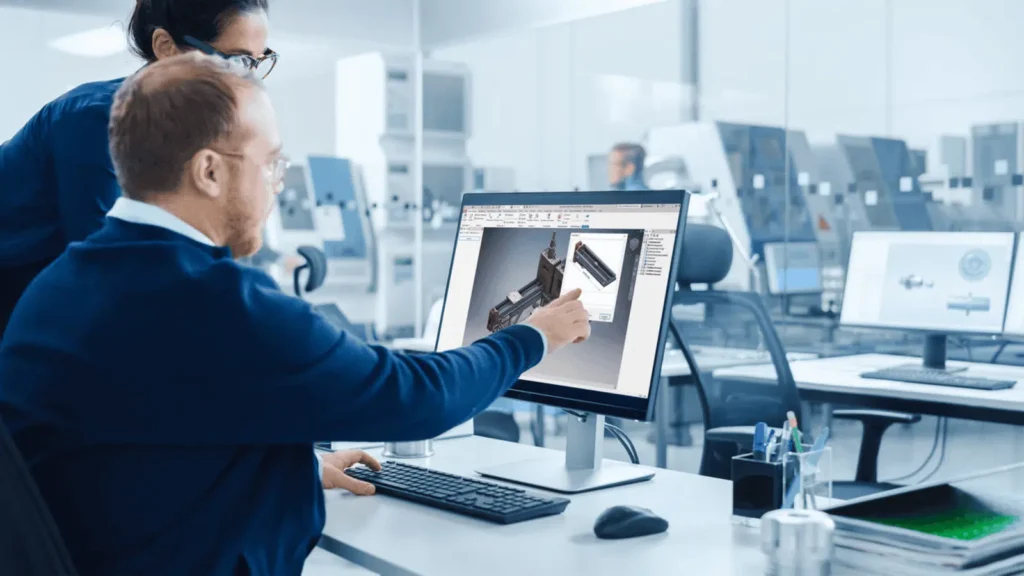
Running Autodesk Inventor Pro on a Mac using Parallels Desktop is a powerful solution for engineers and designers who need Windows-only CAD tools. However, because Inventor is a GPU-intensive 3D modeling application, incorrect virtual machine (VM) settings can lead to:
- Laggy viewport performance
- Graphics glitches
- DirectX errors (such as Code 10)
- Poor rendering quality
- Crashes during modeling or assembly work
The good news is that most of these issues are caused by incorrect Parallels graphics configuration, not hardware limitations.
This guide explains exactly how to optimize Parallels Desktop for Autodesk Inventor Pro and achieve smooth, stable performance.
Why Graphics Settings Matter in Parallels for Inventor Pro
Autodesk Inventor relies heavily on:
- DirectX 11 GPU acceleration
- Real-time 3D rendering
- Hardware-based shading and simulation
- Multithreaded graphics processing
However, Parallels runs Windows inside a virtual machine, meaning:
- GPU is virtualized (not directly accessed like native Windows)
- Graphics performance depends on VM configuration
- Incorrect settings force software rendering → severe slowdown
As confirmed in technical environments, enabling proper GPU acceleration and allocating enough graphics memory is critical for stable CAD performance .
Step-by-Step: Configure Parallels Graphics Settings for Inventor Pro
Step 1: Fully Shut Down Your Virtual Machine
Before making any changes:
- Close Autodesk Inventor
- Shut down Windows VM completely (NOT suspend)
This ensures settings apply correctly.
Step 2: Open Parallels Configuration
- Launch Parallels Desktop
- Select your Windows VM
- Click ⚙ Configure
Step 3: Enable Proper Graphics Acceleration
Go to:
Hardware → Graphics
Set the following:
✔ 3D Acceleration
- Select: DirectX 11 (Recommended)
- Or: Auto (if DirectX 11 is unavailable)
Autodesk Inventor requires DirectX 11 for stable viewport rendering.
✔ Graphics Memory Allocation
Adjust based on system RAM:
- Minimum: 1 GB
- Recommended: 2 GB or higher
Higher graphics memory improves:
- Large assembly handling
- Smooth orbit/pan/zoom
- Reduced lag in shaded mode
Step 4: Enable Performance Mode Settings
Inside Parallels VM settings:
- Set Profile: Productivity or Design
- Avoid “Battery saving” mode
These profiles prioritize CPU + GPU usage for CAD applications.
Step 5: Increase CPU and RAM (Very Important)
Go to:
Hardware → CPU & Memory
Recommended configuration:
- CPU: 4 cores or more
- RAM: 8 GB minimum
- Ideal RAM: 16 GB (for large Inventor projects)
This prevents freezing during:
- Assemblies
- Drawing updates
- Simulation tasks
Step 6: Install / Update Parallels Tools
Parallels Tools improves:
- GPU driver performance
- Mouse responsiveness
- Display rendering
Steps:
- Click Actions → Reinstall Parallels Tools
- Restart Windows VM
Step 7: Optimize Windows Graphics Inside Inventor
Inside Autodesk Inventor:
Go to:
Tools → Application Options → Hardware
Recommended settings:
- Graphics Mode: Performance
- Hardware Acceleration: ON
- Graphics Multithreading: ON
If issues occur:
- Switch to Conservative mode (more stable but lower performance)
Advanced Optimization Tips for Better Performance
1. Disable Unnecessary Visual Effects
Inside Windows:
- Turn off animations
- Disable transparency effects
- Use “Best Performance” mode
This reduces GPU load significantly.
2. Use Scaled Resolution Instead of Retina
High-resolution Retina scaling can overload the virtual GPU.
Recommended:
- Use Scaled resolution
- Avoid maximum Retina mode for heavy CAD work
3. Close Background Applications
Before launching Inventor:
- Close browsers
- Stop heavy background apps
- Disable Windows update tasks temporarily
4. Keep Parallels Updated
New versions improve:
- DirectX compatibility
- GPU virtualization performance
- Apple Silicon optimizations
5. Avoid Over-Allocating Resources
Too many CPU cores or RAM can actually reduce performance.
Best practice:
- Use balanced allocation (not maximum)
Common Problems and Fixes
❌ Inventor shows “Code 10” GPU error
✔ Fix:
- Enable DirectX 11 in Parallels
- Install Parallels Tools
- Increase graphics memory
❌ Lag in 3D navigation
✔ Fix:
- Switch to Performance mode
- Reduce resolution scaling
- Enable hardware acceleration
❌ Crashes during large assemblies
✔ Fix:
- Increase RAM to 16 GB
- Close background apps
- Use Conservative graphics mode
Final Thoughts
Proper configuration of Parallels graphics settings for Autodesk Inventor Pro is essential for smooth CAD performance on Mac. Most performance issues are not hardware-related—they are caused by:
- Incorrect DirectX settings
- Low graphics memory allocation
- Missing Parallels Tools
- Unoptimized VM configuration
Once configured correctly, Inventor Pro can run smoothly in Parallels with stable 3D rendering and responsive modeling tools.